According to Facebook’s terms and conditions, accounts are always tied to a single person. However, this person can create and manage Facebook pages for businesses. To connect these pages with Lomavis, you have to log in with your personal account. After logging in, you can select the desired page. If the page is not listed, please follow the next steps to fix the issue.
With Lomavis you can only connect Facebook pages. If the desired Facebook page is not shown in the connection process, first check via the following link whether the page is listed among your pages: https://www.facebook.com/pages/?category=your_pages
If the page is not listed, you can create a new page using the following link: https://www.facebook.com/pages/creation/
Note: If there is no page listed in your Facebook account and you also haven’t successfully connected any Facebook page yet, please remove Lomavis as an app in Facebook via the following link: https://www.facebook.com/settings/?tab=business_tools
To connect Facebook pages, it’s recommended that the Facebook account you use has the admin role in the page management. To check this, open the desired Facebook page and follow these steps:
1. Switch to the company profile
2. Open the settings in the left menu
3. Open the "Page configuration" menu item in the left menu
4. Open the “Page access” menu item
5. Check that the Facebook account being used has been added as an admin of the page and that the invitation has also been accepted. If the role isn’t admin, ask an admin to adjust the permissions
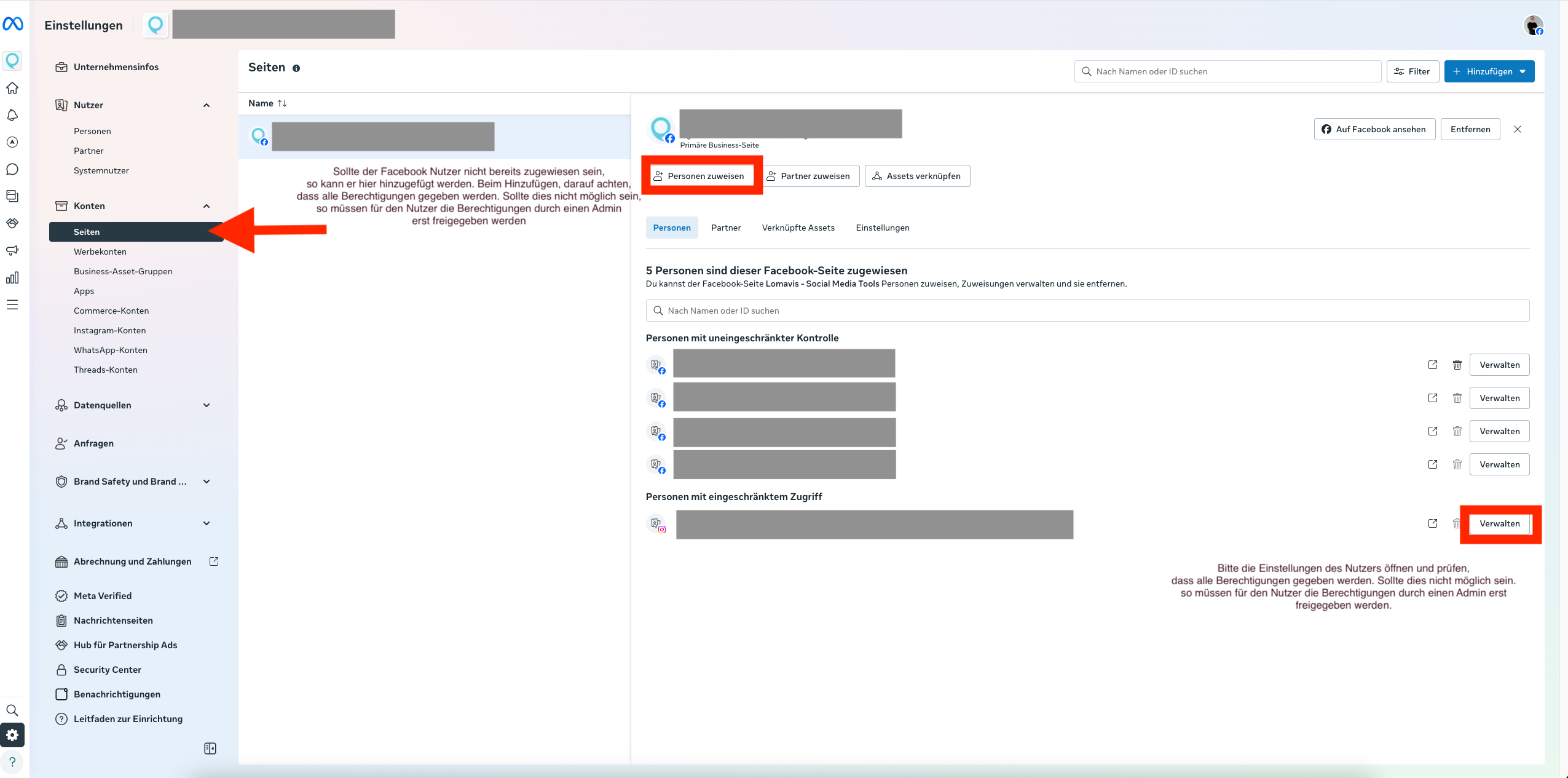
In the Meta Business Suite you need to check whether access to the asset of the Instagram business account is also set correctly. It’s important that all permissions are granted for everything to work properly. To do this, open Business Manager and open the settings of the corresponding business portfolio: https://business.facebook.com/latest/settings/
Facebook lets you configure permissions specifically for apps like Lomavis. To check whether access for Lomavis is granted here, do the following:
Make sure your personal Facebook account is selected in the top right. If you’re currently acting as a page, switch to your Facebook account
Open the following link to open the business integrations: https://www.facebook.com/settings/?tab=business_tools
Click on "Bearbeiten" in the Lomavis row to open the permissions.
Make sure that for all permissions the desired page is activated and/or the toggle is switched on