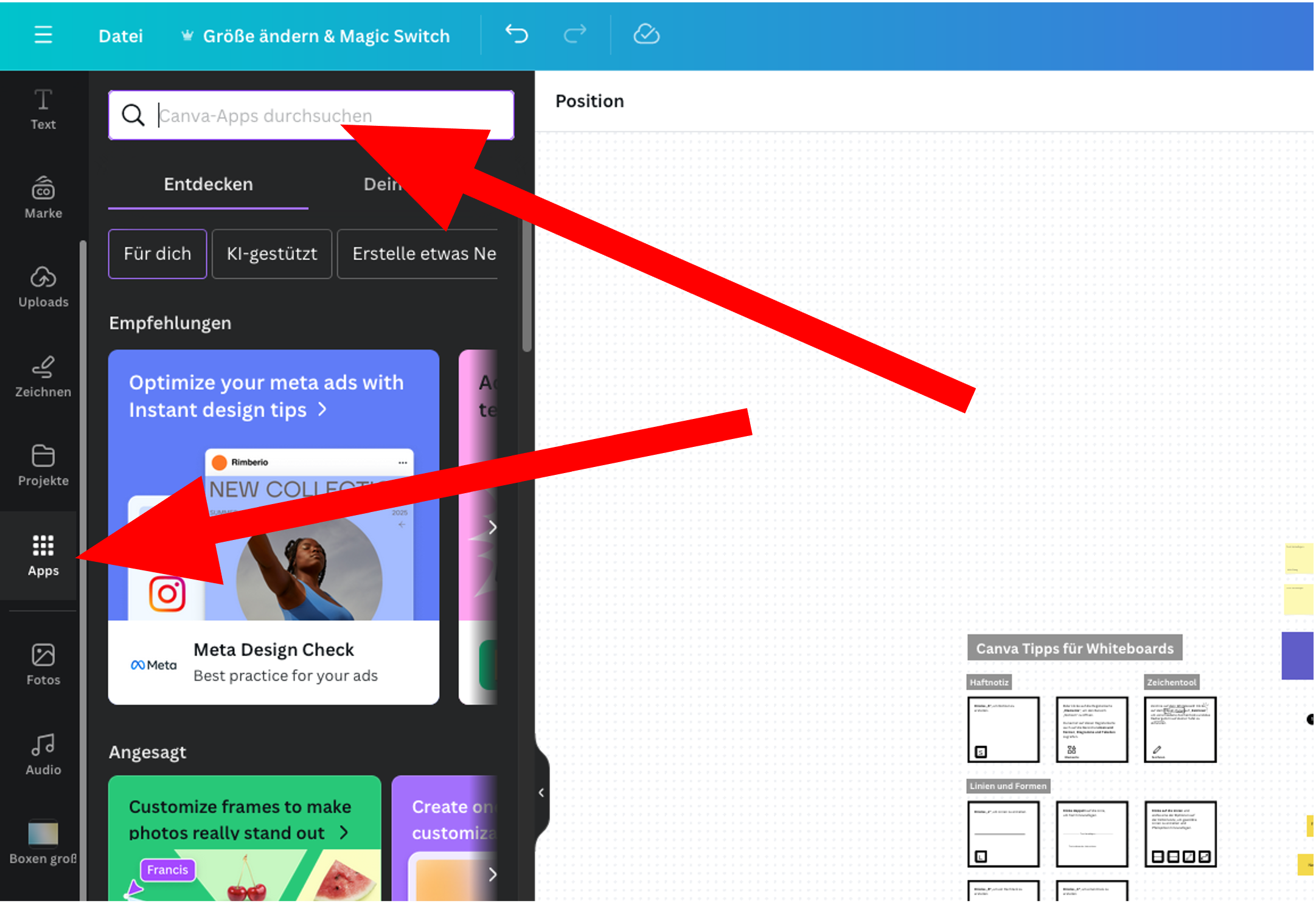
1. Open Canva apps and search for Lomavis
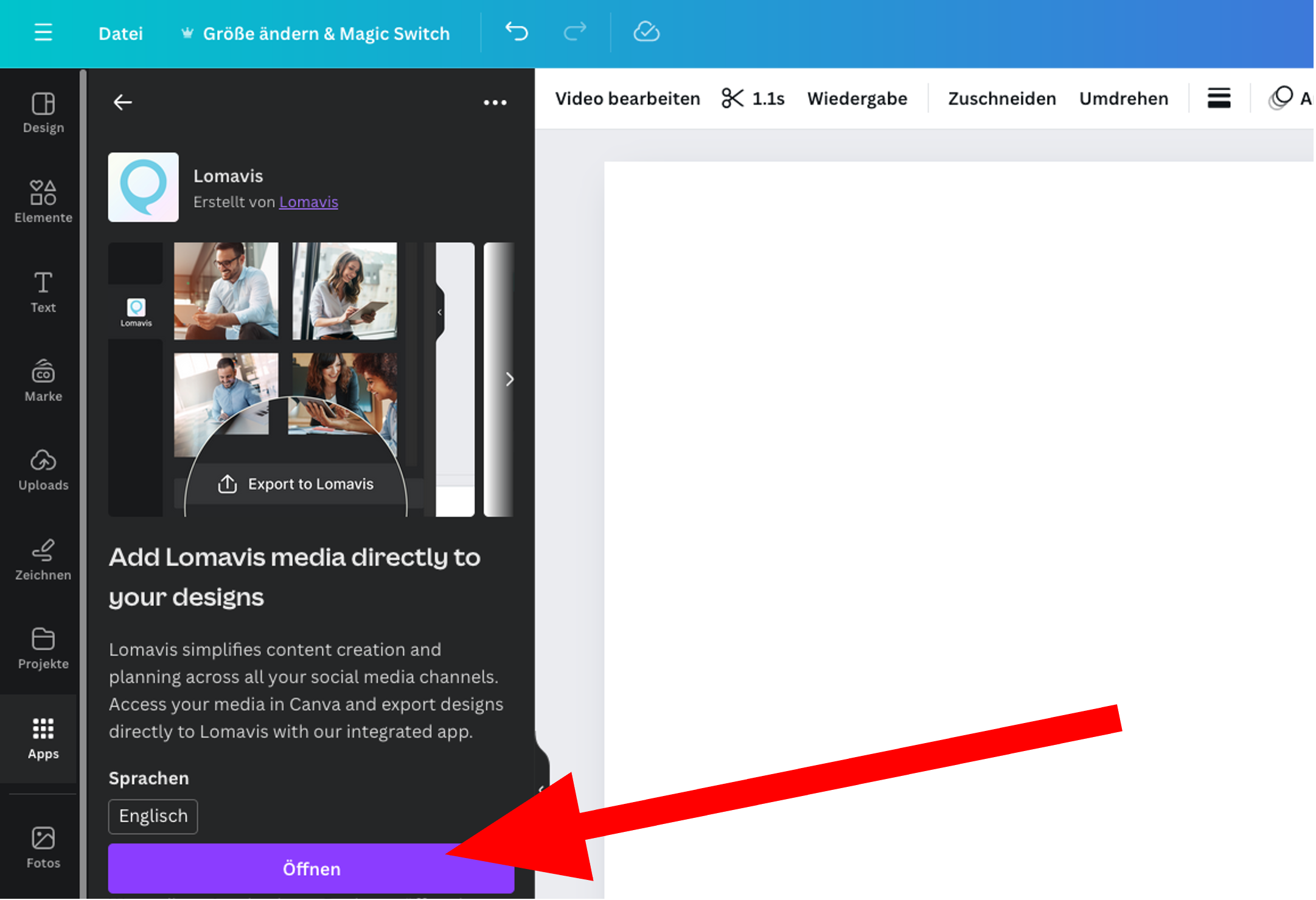
2. Open Lomavis app
3. Link Lomavis account

With the app, you get access to all the content in the media library of the selected profile group.
You can search and filter media.
Open the Lomavis app in Canva.
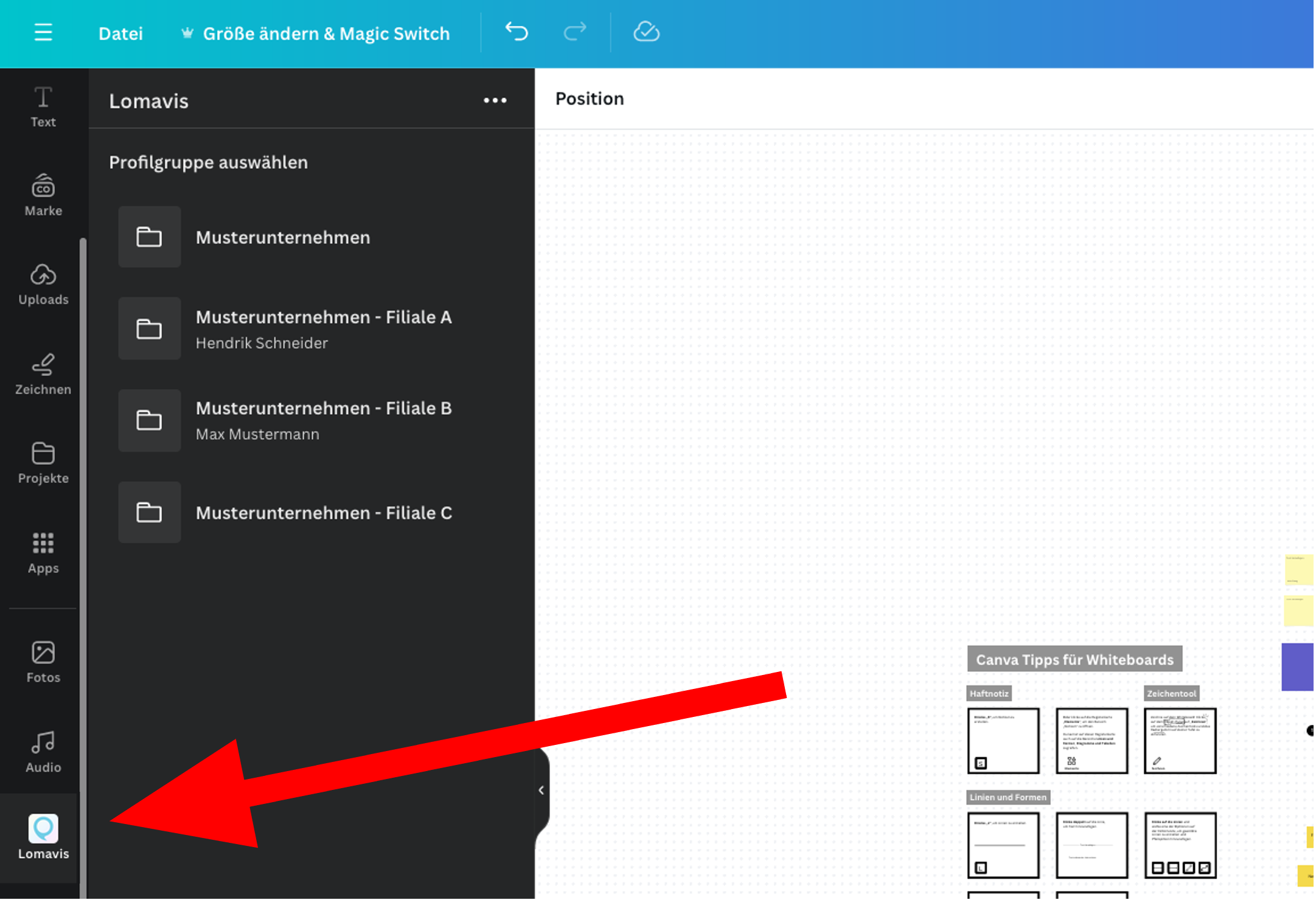
Once the app is open, you'll see an overview of the profile groups in the linked Lomavis account.
Select the profile group you want.
Clicking the preview image will select the file for editing.
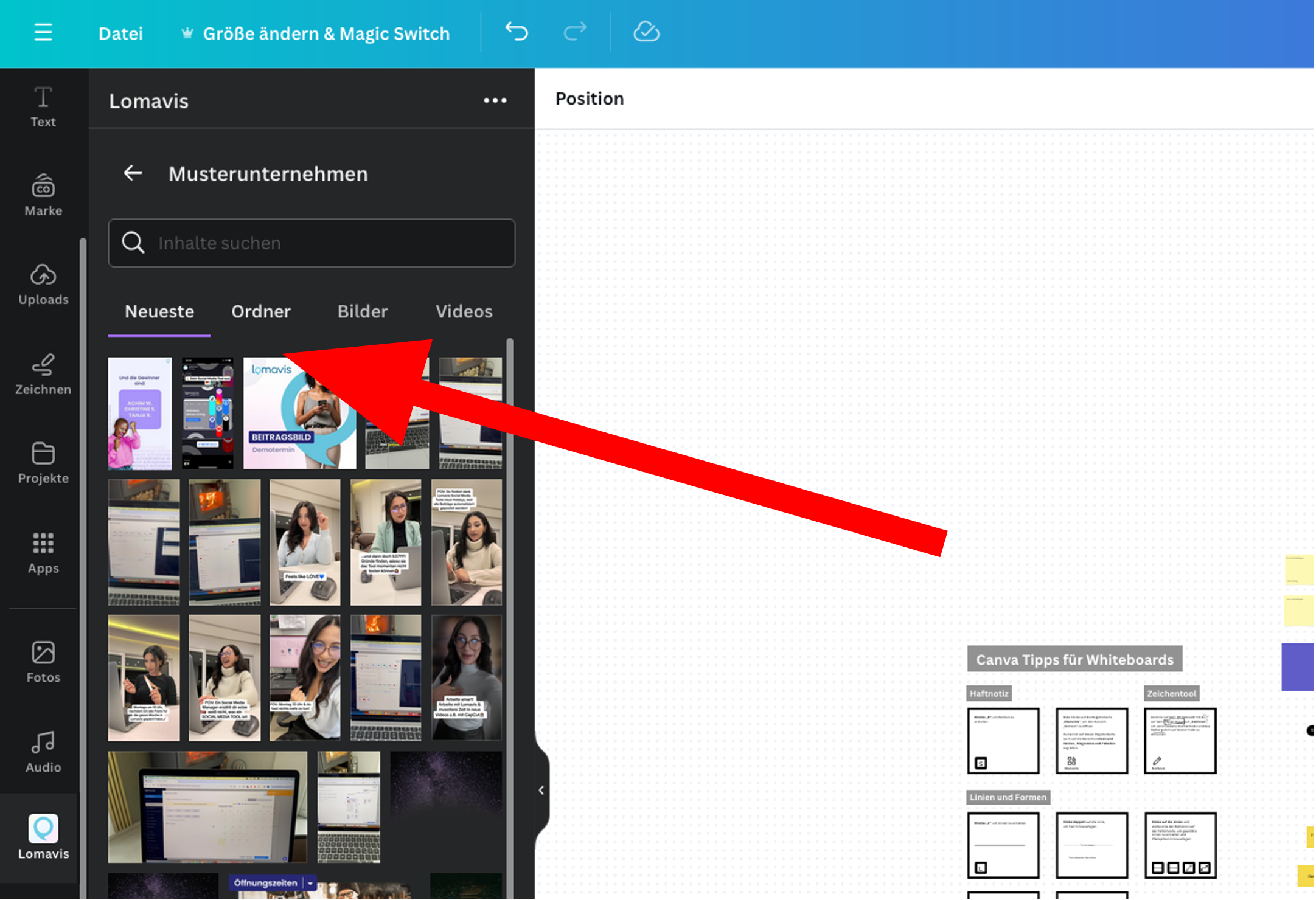
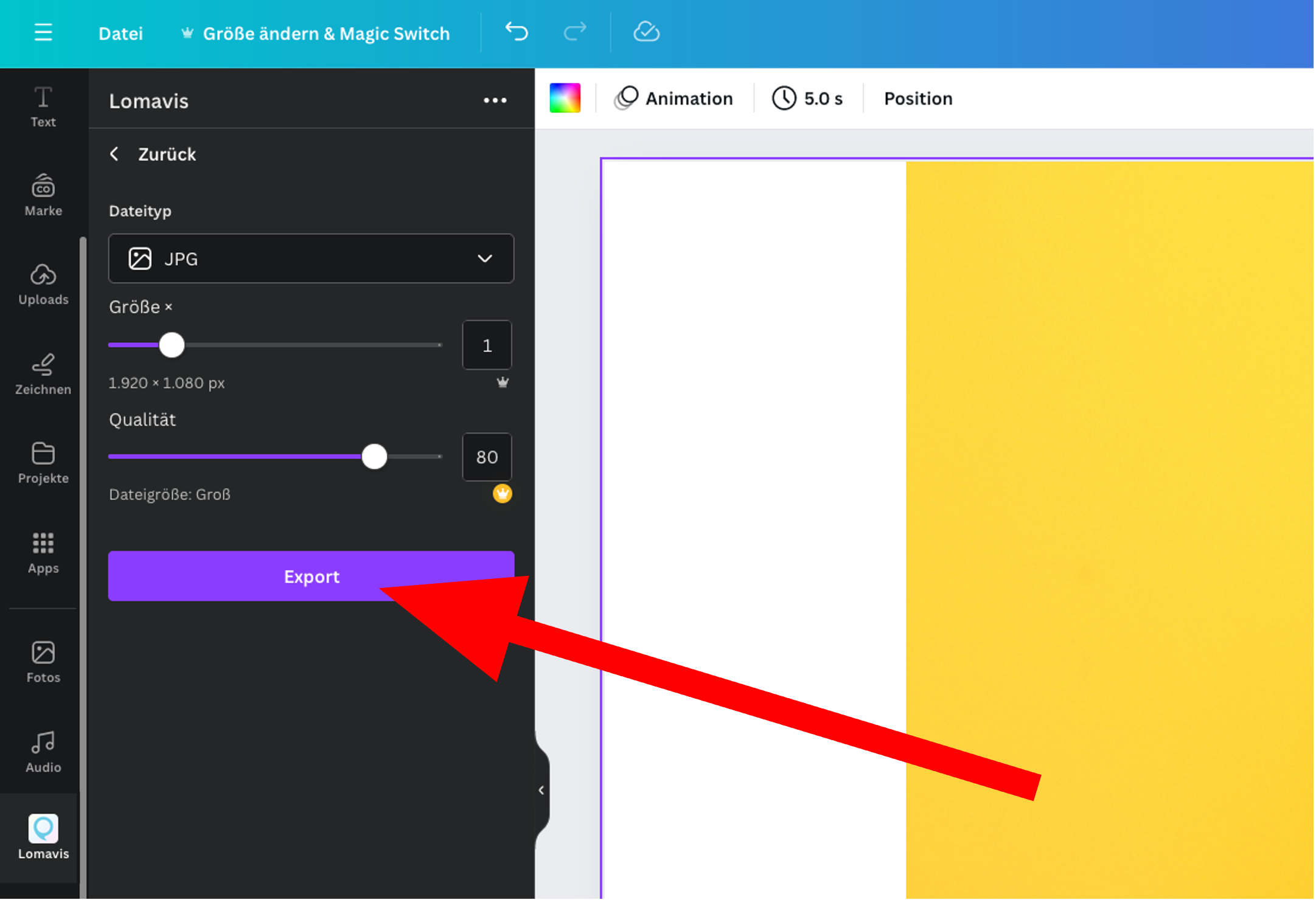
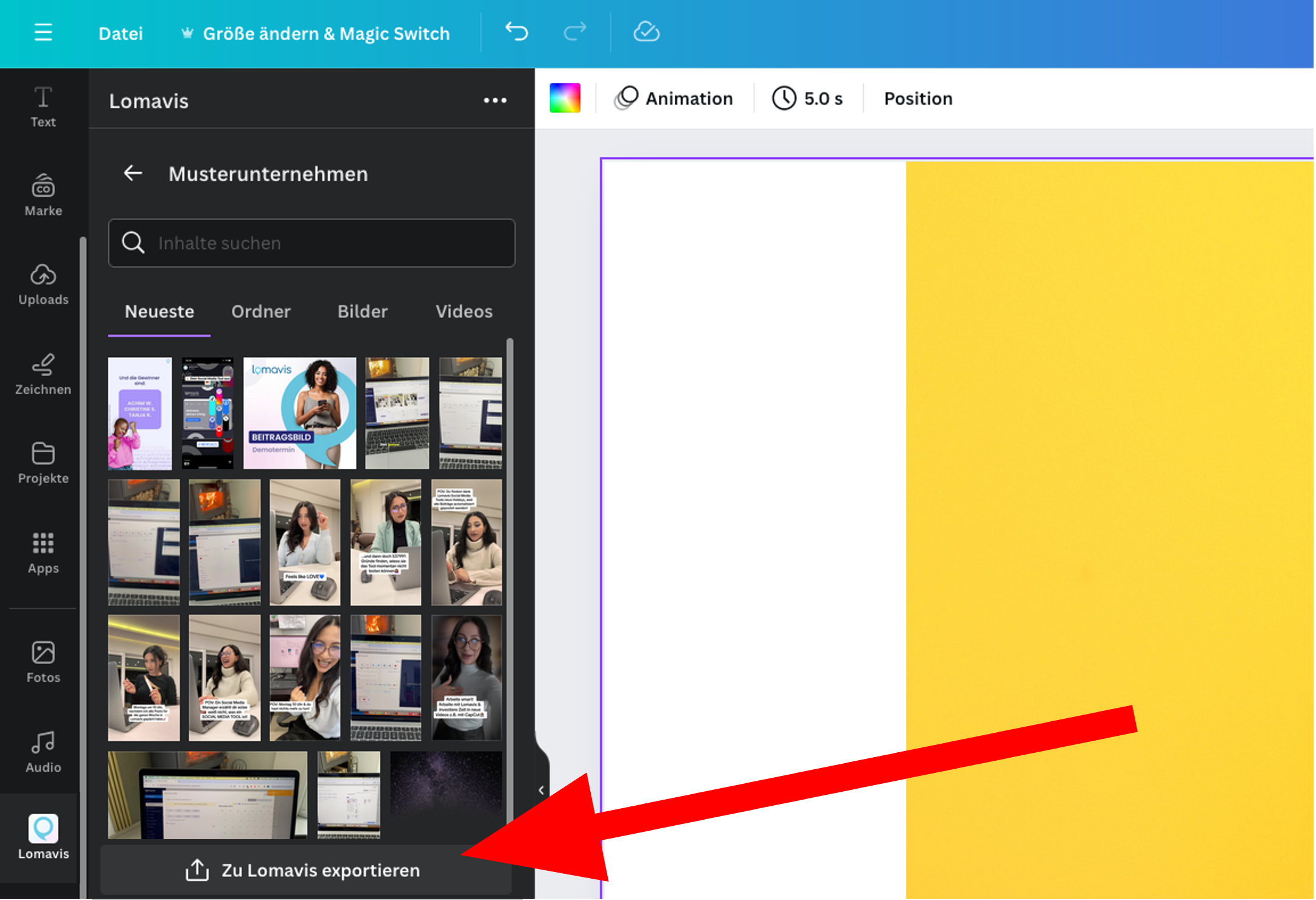
You can export created media from Canva straight to Lomavis. To start the export process, just click the "Export to Lomavis" button.
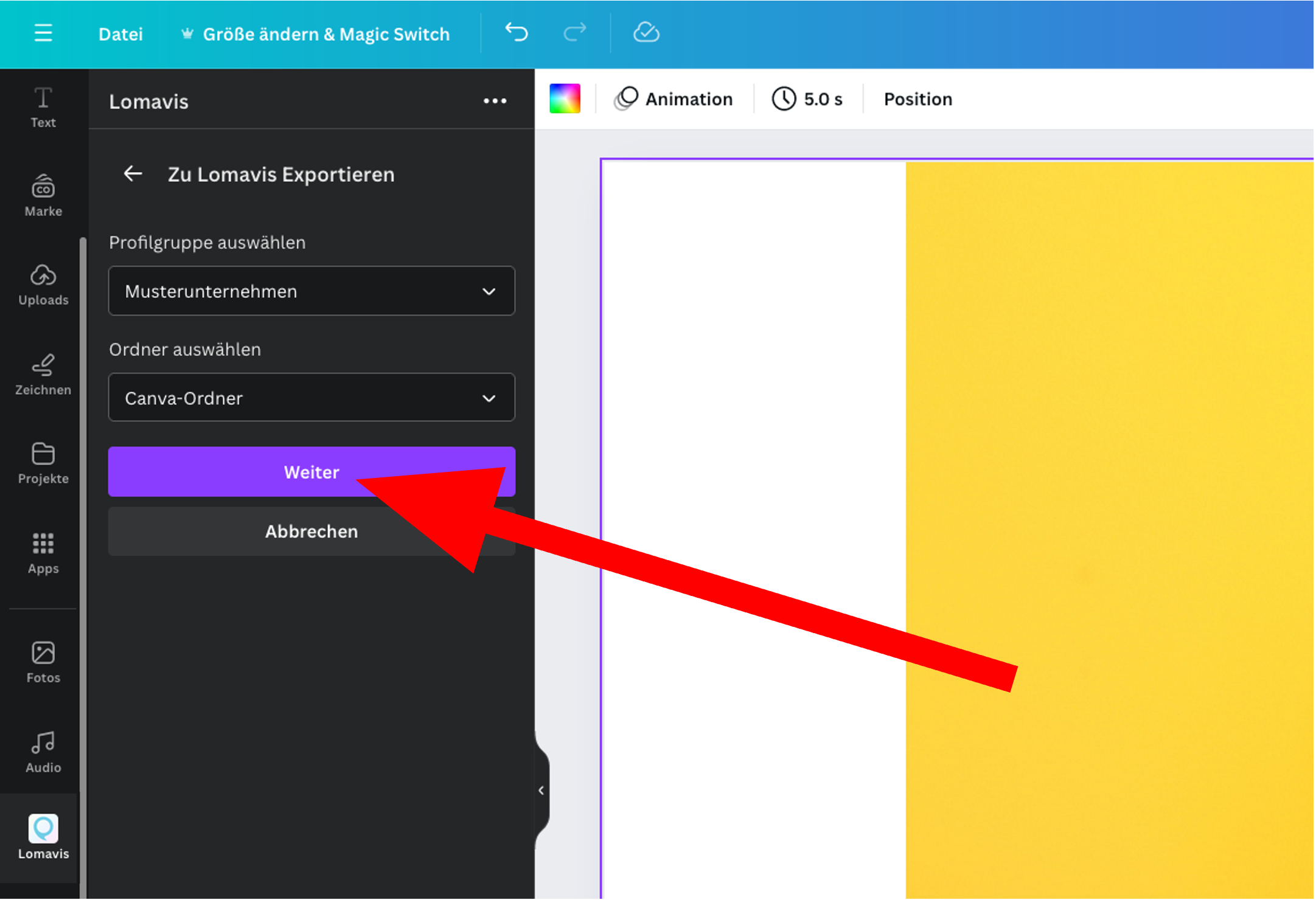
Next, pick the profile group and the folder to save everything in, then click on next.
Finally, you can tweak the export settings, and after clicking on "Export", the current media file will be exported to Lomavis.